
FLEXSCOPE
Stabilized Oscilloscope Visualizer
View your audio waveforms in real time with a detailed, stable oscilloscope visualization inside your DAW.
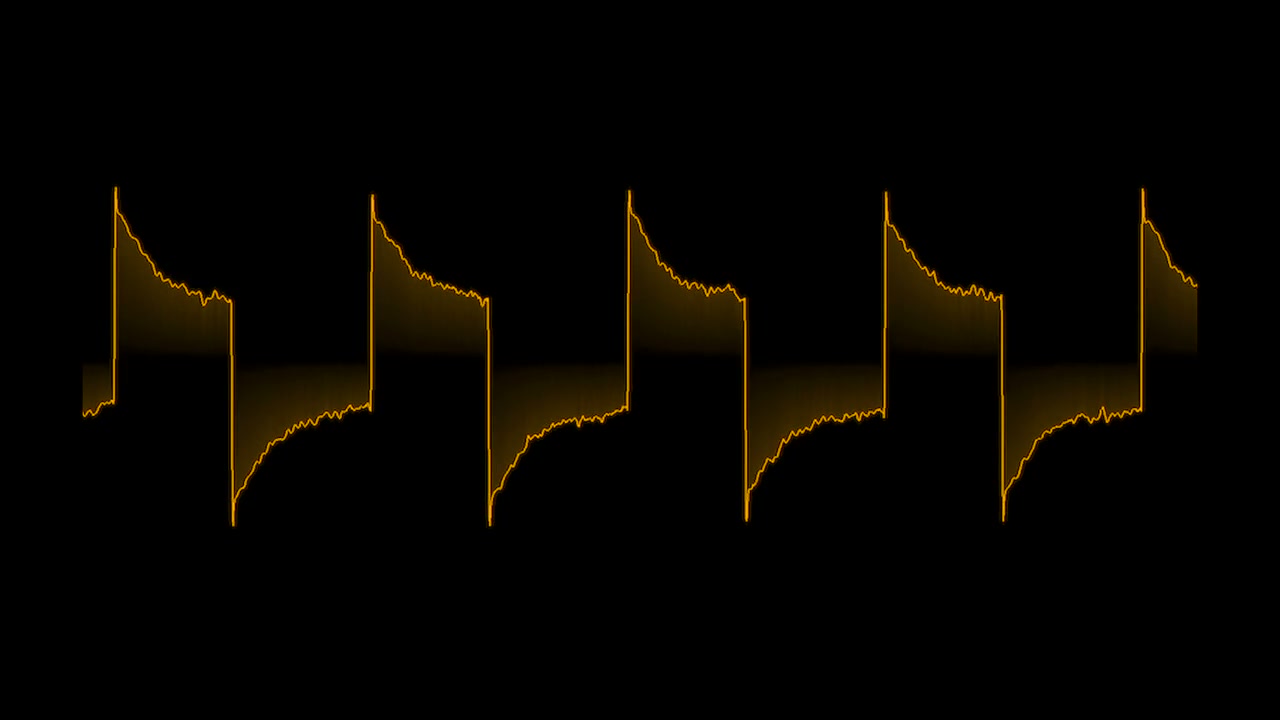
FlexScope is a DAW visualization plugin for viewing audio waveforms during music production, sound design, and mixing sessions. It automatically stabilizes the waveform in the viewer so you can inspect the true shape of your sound.
Available Formats: VST3, AU, AAX, and CLAP
Stereo, Mid/Side, And Mono Monitoring
Easily configure your channel display.
- View Left and Right channels independently, inspect the Mid and Side components of a stereo signal, or display a single Mono waveform.
- Show both channels together or isolate one as a centered waveform.
- Flip the vertical order of two waveforms and enable channel labels to keep track of the view.
Flexible (Literally)
- Resize the visualizer window freely without an aspect ratio lock.
- Display controls live in a separate, dismissible window so you can see style changes immediately during live sessions.
- Hide the visualizer’s hover controls for a clean view when screen recording, streaming, or presenting your session.
Customizable Presentation
Easily adjust the waveform style to suit your tastes.
- Update the waveform color manually or through automation.
- Choose a fading gradient, solid fill, or outline-only display.
System Requirements
FlexScope runs inside a compatible DAW or plugin host on macOS and Windows. Your computer must meet the following requirements.
macOS System Requirements
- macOS 10.13 or newer.
- Intel or Apple Silicon Mac.
- A graphics processor that supports OpenGL 2.1 or newer.
- A DAW or host that supports AU, VST3, CLAP, or AAX.
Windows System Requirements
- Windows 10 or Windows 11.
- x64 architecture. Windows on ARM is not supported.
- A graphics processor that supports OpenGL 2.1 or newer.
- A DAW or host that supports VST3, CLAP, or AAX.
License Activation
Each FlexScope license allows use on up to two (2) computers at the same time. A valid license key and an internet connection are required for activation. Access your license key and manage machine activations in the My Plugins section of your Tuneform account.
FLEXSCOPE
Stabilized Oscilloscope Visualization Plugin
FLEXSCOPE FAQ
FlexScope displays the waveform of an incoming mono or stereo audio signal in real time and stabilizes the view so you can see the true shape of your sound as it evolves.
No. Audio passes through FlexScope unaltered. Channel modes, colors, fill, and other display settings only change the visualization.
Use a DAW or host that supports one of the formats available for your operating system: AU, VST3, CLAP, or AAX on macOS; VST3, CLAP, or AAX on Windows. Your computer must also meet the system requirements listed above.
In most DAWs, drag an edge or corner of the plugin window. In AU or AAX hosts that do not provide normal window resizing, enable Show Options On Hover and drag the control in the bottom-right corner. The visualizer can be resized from 100 × 100 to 2000 × 2000 pixels.
Double-click the visualizer, click Customize when hovering over it, or press O while the window has keyboard focus. The configuration window lets you choose channel views, waveform color and opacity, fill style, and channel labels. You can hide hover controls for a clean display and still open configuration by double-clicking.
Yes. Hosts that support plugin automation can control channel mode, visibility, position flipping, RGBA color, fill, and channel labels.
Yes. Your Tuneform account is where you access the FlexScope installer, license key, and machine activations. To find them, log in and open My Account, then My Media, then My Plugins.
Download the installer for your operating system from My Plugins in your Tuneform account and run it. Reopen your DAW or rescan its plugins, then open FlexScope with an internet connection. Copy your full license key from My Plugins, enter it in the activation screen, and click ACTIVATE.
Close and reopen your DAW, or rescan plugins in its plugin manager. Confirm that you installed a format your DAW supports and that it scans the correct system plugin folder. If you are using VST3, make sure VST3 scanning is enabled.
Check that audio is reaching the track and playback or input monitoring is active. Make sure waveform Alpha is greater than zero. A centered mono signal may show little or no Side information, so try Mid Only or Both in Mid/Side mode. Also confirm that your graphics processor supports OpenGL 2.1 or newer.
Each FlexScope license allows use on up to two (2) computers at the same time. Activate FlexScope by entering your full license key in the plugin while connected to the internet. Activation is stored locally for the current user, so other FlexScope instances on the same machine can recognize it. You can review your activated machines in My Plugins in your Tuneform account.
Download the latest FlexScope installer available in My Plugins and run it on your computer. Follow the installation steps again; the new version replaces the previous installation.
The FlexScope manual covers installation, activation, display controls, automation, and troubleshooting. Read it at https://support.tuneform.com/flexscope-visualizer-plugin-user-manual. For support or feedback, contact Tuneform through the support portal at https://tuneform.com/support.